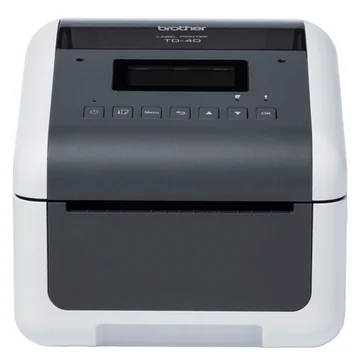
Store staff4-inch desktop

Brother TD-4D series

A 4-inch printer for bigger labels, like full food to go and nutrition labels.

Brother TD-4D series
Models
TD-4550DNWB4-inch.
TD-4555DNWBSame printer, different code.
BluetoothWi-FiNetwork cableApp: iOS and Android
1

Connect with Bluetooth

Best for one tablet next to the printer.

  1. Plug in and switch on

    Plug the printer into a socket, turn it on and set the date and time.

  2. Turn on Bluetooth in Classic mode

    Press Menu and use the arrow keys to go to Bluetooth. Set Bluetooth On, then set Mode to Classic.

    Classic modeIt must be set to Classic or the app won't find it.
  3. Pair it with your phone or tablet

    Turn on Bluetooth on your phone or tablet, open its Bluetooth settings and tap the Brother printer to pair.

  4. Connect in the Dill app

    Log in, tap the printer button at the top of Home, pick Bluetooth and tap Connect. The square turns green.

2

Connect with Wi-Fi

Best when several phones or tablets print to the same printer.

  1. Plug in and switch on

    Plug the printer into a socket, turn it on and set the date and time.

  2. Turn on Wi-Fi

    Menu → WLAN → WLAN (On/Off) → On. Then in the WLAN menu set Network Mode to Infrastructure Mode.

  3. Join your network

    Menu → WLAN → Infra Manual Setup. Pick your network, type the password with the arrow keys and confirm.

  4. Put your tablet on the same Wi-Fi

    The printer and your phone or tablet must be on the same network.

  5. Connect in the Dill app

    Log in, tap the printer button at the top of Home, pick Network and tap Connect. The square turns green.

3

Connect with a network cable

The steadiest option if the printer sits near your router.

  1. Plug in the power and switch on

    Plug the printer into a socket, turn it on and set the date and time.

  2. Plug in the network cable

    Plug one end into the printer and the other into a free network (Ethernet) port on your router.

  3. Put your tablet on the same network

    Your phone or tablet can be on Wi-Fi, as long as it's the same network the printer is cabled to.

  4. Connect in the Dill app

    Log in, tap the printer button at the top of Home, pick Network and tap Connect. The square turns green.

4

Load a label roll

  1. Open the cover

    Pull the release catches and lift the cover.

  2. Open the roll guides

    Slide the guides apart.

  3. Put the roll in and feed the labels out

    Drop the roll in, close the guides onto it, and pull the end of the labels out past the front.

  4. Close the cover

    Push it down until it clicks.

    Stop it going to sleepMenu → Settings → Auto Power Off → Off, and Menu → Settings → Auto Sleep → Off.
5

Keep it clean

Dirt on the print head causes white streaks and jams.

  1. Unplug the printer first

    Always disconnect the power before cleaning. Brother recommends an anti-static (ESD) mat or anti-static gloves.

  2. Wipe the print head

    Use a lint-free cloth or cotton swab dipped in isopropyl alcohol or ethanol. Do this regularly.

  3. Wipe the roller and the label exit

    Use a lint-free cloth dipped in isopropyl alcohol or ethanol. Make sure no fluff is left on the roller.