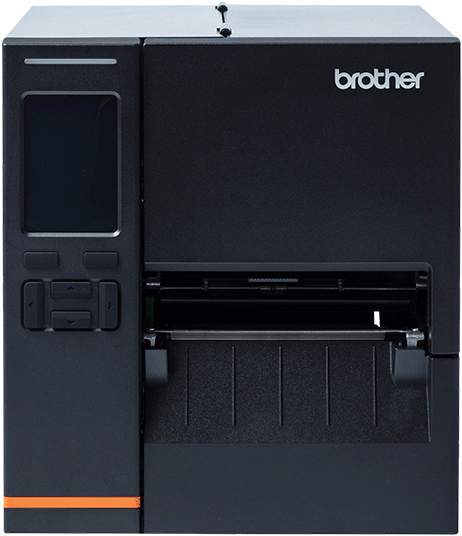
Store staff4-inch industrial

Brother TJ series

An industrial printer for high volumes, like central production kitchens. It plugs into your router with a cable and gets a fixed address, so the app can always find it.

Brother TJ series
Models
TJ-4121TNThe TJ model shown in this guide.
Network cable (fixed IP)App: iOS and Android

Before you start

  • The TJ printer, a label roll and a network cable long enough to reach your router.
  • A spare network address from whoever set up your internet.
1

Load the label roll

Get the roll flush. It decides whether labels print in the right place.

  1. Open and flip the guard down

    Open the media cover. Slide the green Label Roll Guard to the end of the spindle and flip it down.

  2. Load the roll

    Put the roll on the spindle, print side facing up, pushed all the way back against the inner wall.

  3. Lock it in

    Flip the Label Roll Guard back up so it holds the roll.

    Flush every timeA roll that isn't pushed fully back prints labels that are shifted or cut off.
2

Thread it through

Run the labels under the damper, through the sensor and out past the print head.

  1. Under the damper

    Push the Print Head Release Lever to open the head, then feed the labels under the clear damper bar.

  2. Through the sensor

    Thread the labels through the media sensor. Turn its knob so the ▼ gap mark sits over the labels.

  3. Out past the print head

    Pull the labels out past the print head. Line up the left edge with the edge of the head nearest the printer wall.

  4. Set the green knob and close

    Turn the green knob to your label width: 1–2″ for small labels, 3–4″ for wide ones. Press down on both sides until the head locks.

3

Connect to your network

A cable to your router, then a fixed address so the app can always find it.

  1. Plug in the network cable

    Plug one end into the network port on the back of the printer and the other into your router. Switch the printer on.

  2. Open the network settings

    On the printer's screen tap Menu → Interface → Ethernet → Configure.

  3. Turn DHCP off

    Tap DHCP and set it to Off. If it asks you to confirm, tap Yes.

  4. Type the fixed address

    Tap Static IP and fill in IP address (e.g. 192.168.1.50), Subnet mask (usually 255.255.255.0) and Gateway (your router, usually ending in .1). Tap ✓ to save, and write the address down.

  5. Check it

    On the home screen you'll see the network icon and ETH with your address under Ready.

    Which address?Ask whoever set up your internet for one no other device uses. Your tablet must be on the Wi-Fi of the same router.
4

Calibrate the labels

So every label starts in the same place. Do it every time you change rolls.

  1. Close the print head

    Roll loaded and threaded, head locked on both sides.

  2. Run Auto Calibration

    On the touchscreen: Menu → Sensor → Auto Calibration → Gap. The printer feeds up to three labels, then stops.

  3. Check it

    Tap the Feed icon. Exactly one label should come out.

    ShortcutOnce the printer is saved in Dill, you can also tap Calibrate sensor in Printer tools.
5

Add the printer in the Dill app

Once on every phone or tablet you print from.

  1. Choose TJ printers

    Open the app and log in. Tap the printer button at the top of Home and pick TJ printers, then tap Configure printer.

  2. Enter the address and search

    Type the fixed address you wrote down. Leave the port as 9100. Tap Search printer, then Save printer.

  3. Check status

    Back on Home, tap Check status. A pop-up shows Ready or Not ready, with the printer's address.

    On iPhone or iPad?The first time, iOS asks to find devices on your local network. Tap Allow, or Dill can't reach the printer.
6

Print

  1. Tap the item, check the preview and print

    Quick Print prints one label. Print asks how many: type the number and tap YES.

7

Printer has a new address?

New router, printer moved, or its settings were reset.

  1. Open Settings

    Tap the menu ☰ at the top left of Home, then Settings → Network printer.

  2. Tap Printer setup and enter the new address

    Tap Search printer, then Save printer.

8

Hardware repair (UK)

For a fault with the printer itself, not the app.

  1. Call Brother

    0333 777 4444, Monday to Friday, 9am to 5.30pm.

  2. Have the serial number ready

    It's on the label on the back of the printer. Brother checks the warranty and books the repair.